Data models
A model is the shape of your data. Think of it like a paper form: a Task form has a title, a description and a "done" box, and every task fills in the same form. In Nowa, a model lists those fields once, and then you can use it everywhere: for a variable that holds one task, a list of tasks, or a screen that shows a task.
A few examples of the models apps use:
| App | Model | Fields |
|---|---|---|
| To-do list | Task | title and description (text), isDone (yes or no) |
| Shop | Product | name (text), price (a decimal number), image (the picture's web address) |
| Members area | User | name, email and role (text) |
| Water tracker | WaterLogEntry | amount (a whole number), date (a date and time) |
Nowa also keeps each model ready to be saved, sent or loaded as JSON (the text format apps use to exchange data) as you change its fields.
Create a model
- Open the Library in the sidebar and click Add (+) in its header, then New Model....
- Type a name, such as
Task. As you type, Nowa fills in the Class name, the name you'll pick later when you use the model as a type, and the Path, the model's file: "task model" becomesTaskModel. Click either one to change it. - Click Submit. Your new model is ready for its fields.
Add fields
- In the Library, click Filter and choose Models. The default filter, Widgets, hides them.
- Double-click the model in the
modelsfolder, or select it and press Enter. A single click only shows a details card. - Click the class name in the list on the left. Its Variables (the fields) and Functions appear in the middle.
- Hover Variables and click +. Rename the new field, for example
title, then set its Type and Default Value on the right. See Store data in variables for the type picker. - Repeat for each field.
| Setting | What it does |
|---|---|
| Name | The field's name. |
| Type | What the field holds. It can be another model, such as an Address inside a User. |
| Default Value | The value a new model gets when you don't set that field. |
| Is Final | If on, the field can't be changed after the model is created. Keep it on for values that never change, such as id or createdAt. New fields start with this on, so turn it off for fields you will change, such as title or isDone. |
| Is Static | If on, one value is shared by every model of this kind. Leave it off for normal fields. |
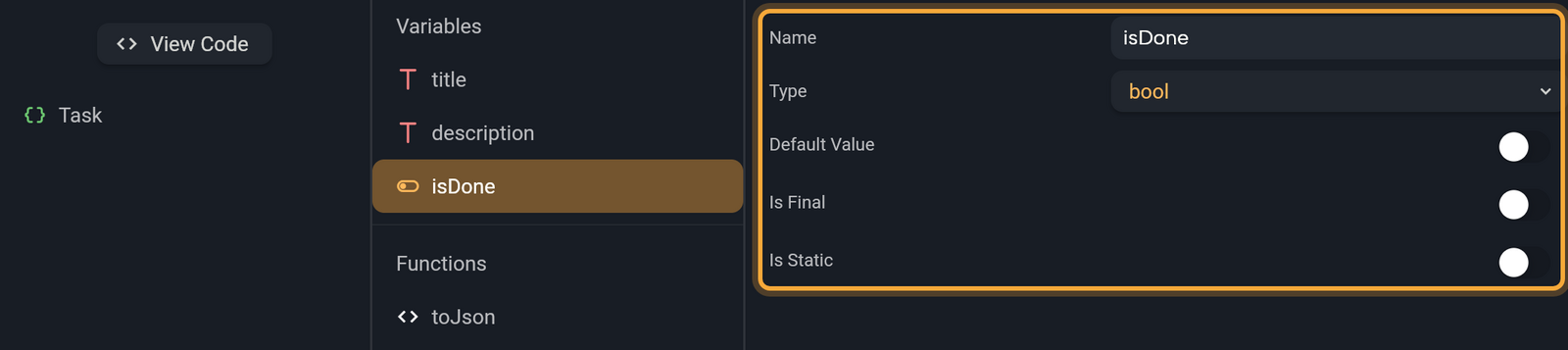
Each time you change the fields, Nowa updates the rest of the model for you. Under Functions you'll see toJson, which turns a model into JSON. View Code shows the code Nowa writes for the model, if you're curious.
A model can also do things. Hover Functions and click + to add a function, such as markAsDone, which sets isDone to true. The function opens in Circuit, where the model's fields are under LOCALS. See Create functions.
Generate models from JSON
If you have a sample of the data, such as an answer from an API, Nowa can build the models for you, including the ones nested inside.
-
In the Library, click Add (+), then Generate Models From Json.... The Generate Models dialog opens.
-
In Content, paste your JSON. The editor's three-dots menu has Wrap, Compress and Prettify, to make long JSON easier to read. Click Next. The button stays disabled while the JSON isn't valid.
-
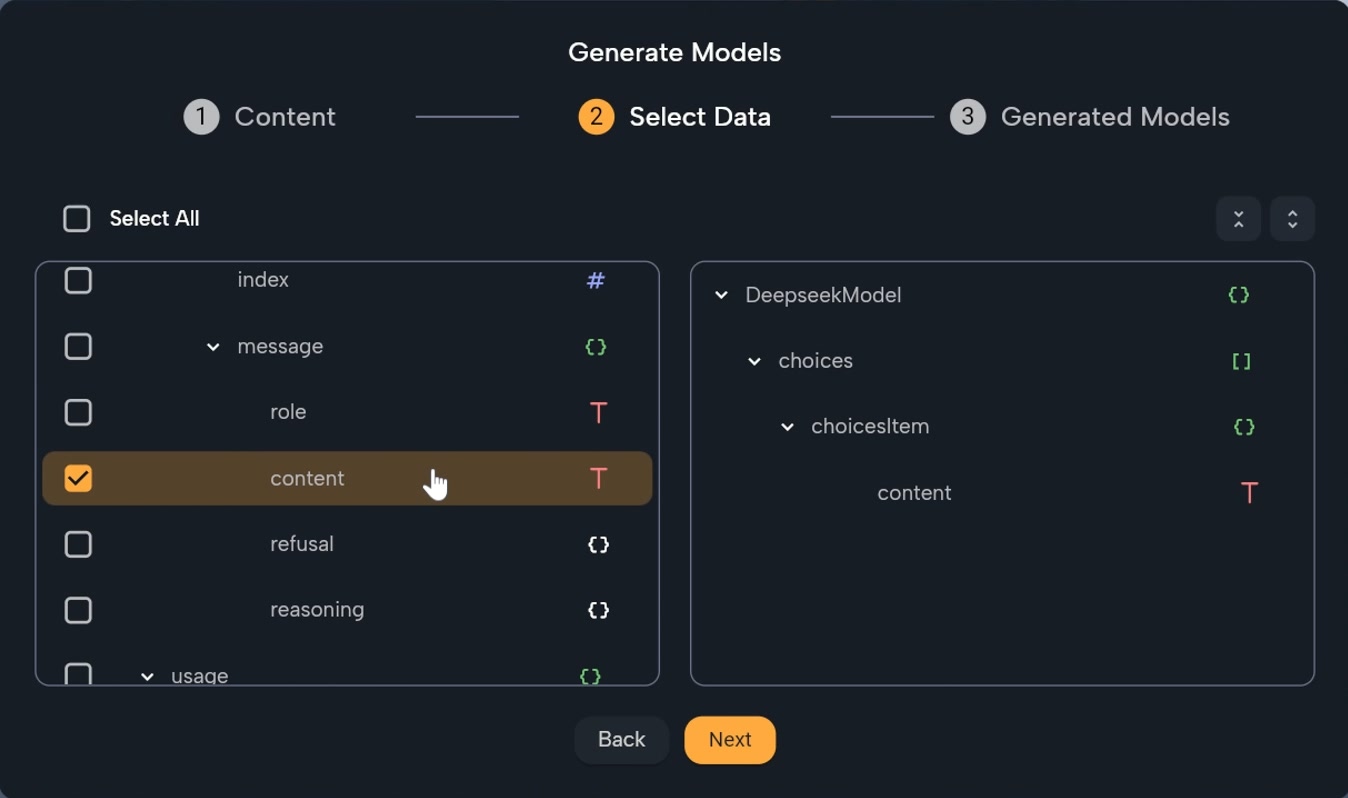
In Select Data, tick the fields to keep. For long data, use the Select All checkbox or the Collapse All and Expand All icons. Click Next.
-
In Generated Models, set the Name of the main model, such as
Product(it starts asRoot). Leave Path as it is: it starts aslib/modelsand must stay insidelib. Click Save and Open.
Each nested object in your JSON becomes a model of its own, and text, number and true/false fields can be empty. If the JSON has no fields to turn into a model, such as a list of plain values, Nowa shows a message and stops.
The REST API tools can create models for an API's answers as well.
Use a model as a type
Once a model exists, it shows up wherever you choose a type.
- Click a variable's type icon, or Type in Details. The Select type picker opens.
- Tick As List first if you want a list of models, such as all the tasks.
- Search for the model's name, or click show more... and pick it.
- Fill in Default Value to preview your design with realistic data. For a list, click + to add items and set each item's fields.
This short video turns a variable named taskList into a list of Task models and gives it three items:
The default is only a starting value. Data your logic sets while the app runs replaces it. The same picker works for params, function inputs and a function's Return Type.
To show a field in a widget, link the property to the variable, click the + after it, and pick the field, such as title. See Expressions and conditions.
Create a model in logic
For example, when someone taps Add task, build a new task from what they typed and add it to the list.
- In Circuit, click the dot under a node. Open GENERAL and click Create.... Pick a constructor opens.
- Search for your model and click it. If it offers a choice, pick Default to build it from field values, or
fromJsonto build it from JSON data. - Nowa adds a node titled Create plus the model's name, such as Create Task. With Default, it has one input per field. Type a value in each input, or click its label to link a variable, a param or an expression. To use what someone typed, link the input to a Text Field: open LOCALS, pick the field's controller and choose
text. - Set Store result to New Variable to keep the new model.
To add it to a list, pick the list variable under LOCALS, click + in Details, and choose add. Link its input to the variable you stored, then add a refresh node so the screen shows the new item. For a list in a global state, call notifyListeners instead, which tells every screen that shows the list to update. To turn a model into JSON, for example to send it somewhere, click + after a model value and choose toJson.
Working in the code? See What Nowa adds to your code.
Try: "Create a Task model with a title and a done flag, and a to-do screen that lists tasks." See How Nowa AI works.
Next steps
- Store data in variables to hold a model or a list of models on a screen.
- Pass data with parameters to hand a whole product or user to a screen or component.
- Share data across your app to keep a list of models, such as a cart, in one place.