Respond to taps and other events
An event is a moment when something happens in your app: someone taps a button, types a letter, submits a form or pulls a list down to refresh it. Each widget lists the events it can react to in Details.
Attach logic to an event and your app runs it by itself, every time that moment comes. That's the difference from a function you create, which runs only when something calls it.
Add logic to an event
- Select a widget on the board, for example a button.
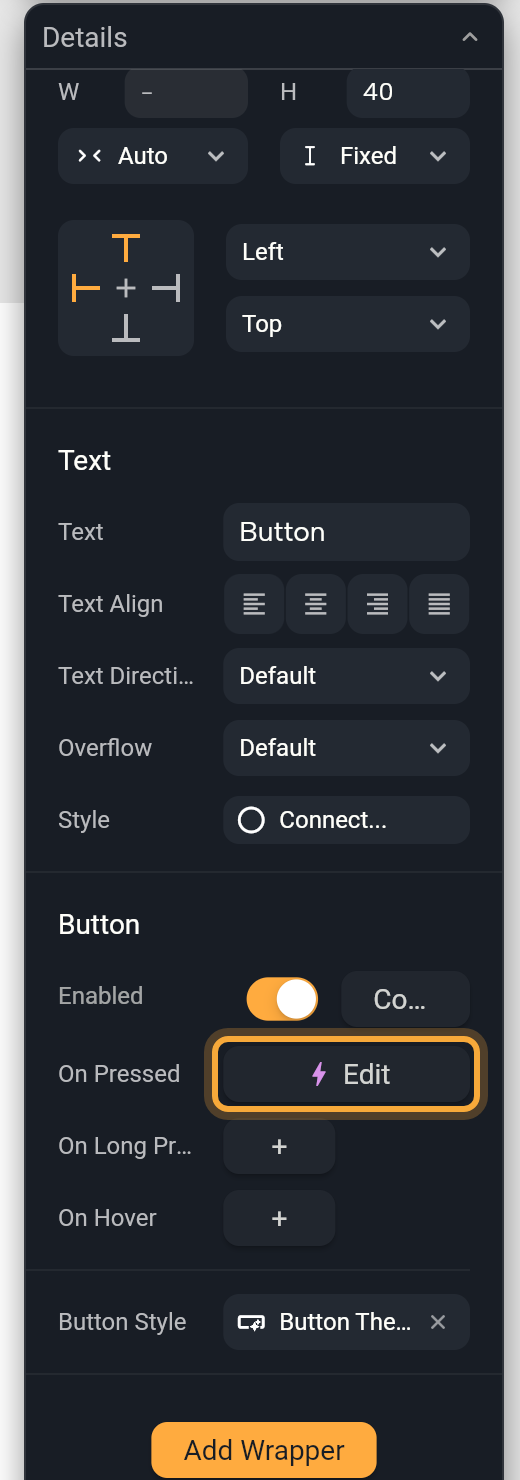
- In Details, find the event. For a Button, On Pressed is in the Button section.
- Click the button next to the event. If it reads +, Nowa creates an empty function for the event first. If it reads Edit (with a bolt), the event already has a function. Either way, Circuit opens.
- Add the steps you want, then close Circuit with ×. Your steps are kept, and you can come back to them any time.
A new Button or Icon Button already has an empty function for On Pressed, so it reads Edit from the start. Click Edit any time to reopen the logic.
The orange node at the top of the circuit is the function Nowa made for the event. It shows the event's name as Flutter writes it, such as onPressed for On Pressed, and underneath, Flutter's name for the widget, such as ElevatedButton for a Button. Click it to see Params, the values the event hands you. For example, On Changed on a text field gives you the new text as value.
Example: show a message when a button is tapped
- Select the button. In Details, click the button next to On Pressed. Circuit opens.
- Hover the dot under the orange node and click the + that appears. The All nodes for this circuit menu opens.
- Search for
snack, or scroll down and open GLOBALS, and click Show snackbar. A node is added. A snackbar is a short message that slides up at the bottom of the screen. - In the Details panel inside Circuit, click the brush next to Content. In the popup, click the Text field to select "Hello World", then type your message, for example
Saved!. Click outside the popup or press Esc to close it. Enter adds a line break to the message. - Close Circuit. Click the screen's title, then click Play next to its name and tap the button. The message appears at the bottom of the screen.
Play runs the screen right on the board, so you can try your logic without leaving the editor. See Play your app on the board.
Events you'll use most
Each widget names its events after what they react to:
| Widget | Event | Runs when | For example |
|---|---|---|---|
| Button, Icon Button | On Pressed | Someone taps or clicks it. | Save a form, or go to another screen. |
| On Long Press | Someone presses and holds it. | Show more options. | |
| On Hover | A mouse pointer moves onto it or off it, on the web and desktop. Its param value is true when the pointer arrives and false when it leaves. | Show a hint while the pointer is over it. | |
| Text fields | On Changed | The text changes, with every letter typed or deleted. | Filter a list as someone types. |
| On Editing Complete | Someone finishes editing, such as by pressing the keyboard's done button. | Check what was typed. | |
| On Submitted (On Field Submitted in a form field) | Someone confirms the text, such as by pressing Enter. | Run a search. | |
| On Tap | Someone taps the field. | ||
| List Tile | On Tap | Someone taps the row. | Open the item's detail screen. |
Any other widget can react to taps too. Select it, click Add Wrapper in Details and choose Gesture Detector or Ink Well. Their events, such as On Tap, then appear in Details. The Dismissible (swipe away) and Refresh Indicator (pull to refresh) wrappers have events too.
Turn a button on or off
A Button or Icon Button also has an Enabled switch in Details. Switch it off to disable the button. Switching it off removes the button's logic, so if On Pressed or On Long Press already has steps, Nowa won't let you and says "Disabling button will remove your function, use compute instead".
Compute switches the button on and off while the app runs and keeps its logic, for example to keep Send greyed out until a form is filled in. Click Compute next to the switch and link a true or false variable, such as formIsReady. The button then works only while that value is true. Click the detach icon to unlink it.
Reuse a function, or let a parent decide
- Run a function you already made: open the event in Circuit, add a node, open LOCALS and pick the function. The event now runs it, and you keep the steps in one place. See Create functions.
- Let the parent decide: click the event's name and choose Create Param.... Nowa adds a param to your component and links the event to it, so each place that uses the component can set its own logic. A product card, for example, can run "add to cart" on one screen and "open details" on another. Developers call this a callback. See Pass data with parameters.
Remove an event's logic
Right-click the event's name and choose Reset to default. Events that can be empty also offer Set to null. Or click the name and choose Detach....
If the event ran a function from your Functions list, that function stays in the list, so you can use it somewhere else. Changed your mind? Undo brings the event's logic back.
Select the button on the board, then ask in Agent mode: "When this button is tapped, show a message that says Saved." Open the result in Circuit to see what it built. See Chat with Nowa AI.
Next steps
- Build logic in Circuit to learn every node.
- Store data in variables to change what your screen shows when an event fires.
- Show dialogs, sheets, snackbars and pickers for more things to do on a tap.