Create functions
A function is a named list of steps that you build once and run from many places: from a button, from another function, or automatically when a screen opens or closes. Think of it as a recipe. It can take ingredients (its parameters), it follows its steps, and it can hand back a dish (its return value).
Functions keep your logic tidy. When two buttons should do the same thing, put the steps in one function and have both run it. If something needs fixing later, you fix it in one place.
Add a function
- Select a screen or component and open the Variables panel. See Store data in variables.
- Hover Functions and click +. If a menu opens, click Add Function.
- A function named
funcappears. Select it, type a name in Name in Details and press Enter. A name that says what it does, such asaddToFavorites, makes your logic easier to read later. Names follow the same rules as variable names. If the list opens a name field, don't type there: the letters t, r, v and f can trigger board shortcuts instead of typing. - In Details, choose a Return Type if the function gives something back, such as
doublefor a price. Leave it asvoid(nothing) if it only does things. - Click Edit. Circuit opens, ready for your steps.
With a function selected, Details shows Name, Return Type, Edit and Remove.
Add parameters and a return value
A parameter is a value the function receives each time it runs. The return value is what it hands back when it's done. Here's a function that turns Celsius into Fahrenheit, the kind of thing a weather app needs.
- In Circuit, click the orange node at the top. Hover Params and click +. A parameter named
paramappears. - Click the parameter. Set Name to
celsiusand Type todouble(a number with decimals). - Set Return Type to
double. - Click the dot under the top node and choose Add Return.
- With the Return node selected, click the Return label in Details, choose Custom Expression..., type
celsius * 1.8 + 32and press Enter. Click the back arrow to close the dialog.
Nodes in the function find celsius under LOCALS. See Expressions and conditions for more ways to set a value.
Call a function
- In Circuit, click the dot where the function should run. This can be in an event's circuit (Respond to taps and other events) or in another function.
- Find your function under LOCALS and click it. A node is added.
- In Details, fill in its parameters: type a value, or click a parameter's label to link one. For the example above, link
celsiusto the temperature you want to convert. - If it returns a value, use Store result to keep it for the next steps.
To jump to the function from its node, hover its name at the top of Details and click the open icon.
A screen's or component's functions are available only inside that screen or component. To share a function across your app, put it in a global state: Share data across your app.
Run logic when a screen opens or closes
Screens and components have two built-in moments you can add steps to:
- InitState Function runs once when the screen or component opens. Use it to load data, read a saved setting or start a timer.
- Dispose Function runs once when it closes for good. Use it to clean up, such as stopping a timer you started, so it doesn't keep running in the background.
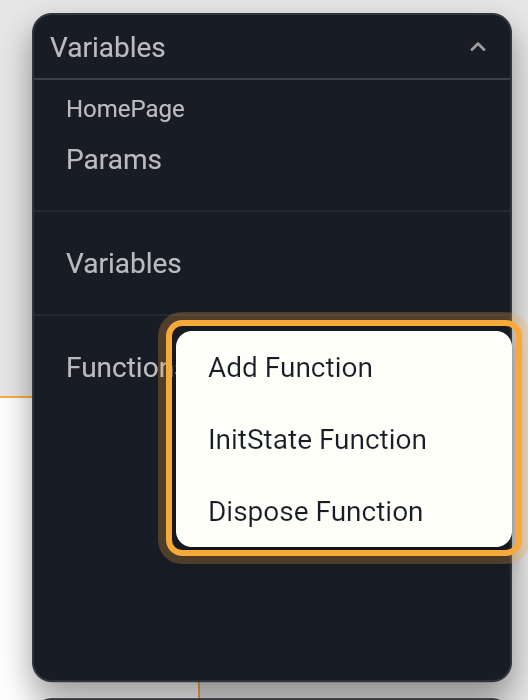
- Hover Functions and click +. The menu lists Add Function, InitState Function and Dispose Function. The last two leave the menu once you've added them, since a screen or component can have only one of each.
- Choose InitState Function or Dispose Function, select it and click Edit.
- Circuit shows one node named
initStateordispose. It runs the screen's built-in setup or cleanup, so keep it. In InitState Function, add your steps below it: click the dot under theinitStatenode. In Dispose Function, add them above it: click the dot under the orange top node.
The Return Type of these two functions is locked. When the setup has to wait for something, such as data from the internet, build those steps as a function of their own (with await inside it) and call that function from InitState Function with await off. Don't turn on await in InitState Function itself: Flutter, which your app is built on, doesn't allow it, so the screen shows an error when you run your app. A function of its own also helps when the steps need inputs or should hand back a result, and it keeps the setup easy to read. For a timer you start here and stop in Dispose Function, see Wait, repeat and create objects.
Wait inside a function
Some steps take time, such as a picker or an internet request. Turn on await for such a node (under Future Options) so the function waits for the result before moving on. Its Return Type then changes to a Future (a value that arrives later) by itself, and changes back when no await is left. See Wait for a result. In InitState Function, put the waiting steps in a function of their own instead, as described above.
Rename, change or remove a function
Select the function. Change Name or Return Type in Details. Double-clicking it in the list also starts a rename, but there the letters t, r, v and f can trigger board shortcuts instead of typing. To delete it, click Remove in Details, or right-click it and choose Remove. If something uses the function, Nowa lists those places and asks before it removes it, so nothing breaks without you knowing.
In Agent mode, try: "Add a function that converts Celsius to Fahrenheit, and call it when the button is pressed." Open the function in Circuit to see how it was built. See How Nowa AI works.
Next steps
- Build logic in Circuit for every node you can use inside a function.
- Pass data with parameters to send values into a screen or component.
- Share data across your app for functions every screen can use.