Use Cloud Firestore
Cloud Firestore is Firebase's database. It's where your app keeps things like orders, messages or user profiles, so everyone who uses your app sees the same, up-to-date data. In Nowa you describe what your data looks like, build queries that fetch it, test them against your real database and show the results on your screens.
Firestore keeps data as documents grouped into collections. A shop app might have a products collection with one document per product, each with fields such as name and price. A query asks for some of those documents, such as "products under 50, cheapest first".
Before you start
- A project connected to Firebase. See Connect Firebase.
- A Cloud Firestore database in your Firebase project. Nowa doesn't create it, but it's quick: see Create your Firestore database.
- If you use the Windows desktop app, you can't test queries inside Nowa. See Firebase on Windows.
- In Nowa 3.13, the designer has no button for adding a collection or a query. Read Add collections and queries in Nowa 3.13 first.
Create your Firestore database
You create the database once, in the Firebase console.
- Open your project in the Firebase console.
- In the left panel, go to Databases & Storage → Firestore.
- Click Create database.
- Pick a location for your database. If you can't choose one, your project already has a location set.
- Choose how your database starts:
- Test mode lets anyone read and change your data. It's handy while you build and try things out, but review your rules before you launch.
- Production mode blocks every read and write from your app until you add rules that allow them.
- Click Create.
Rules (Firestore Security Rules) decide who can read and change your data. You edit them in the console under Databases & Storage → Firestore → Rules. Before you share your app, change them so that people can only reach the data they should, for example so each signed-in user can only see their own orders. Firebase's Get started with Security Rules has ready-made examples, and its quickstart has these setup steps.
Add collections and queries in Nowa 3.13
Nowa 3.13 has no button in the designer for adding a collection or a query. Add Main Collection and Add New Query used to open from the Files panel, but Files now shows only in code mode, where a click opens a file as plain code.
The easiest way today is to ask Nowa AI:
- In the AI Assistant panel (the Assistant icon at the top of the left sidebar), choose Agent mode.
- Describe the collection and the query you need, in your own words. For example: "Add a Firestore collection called orders with the fields customerName (text), total (decimal number) and status (text), and a query in FirestoreService that lists the orders whose status is pending and keeps updating."
- When the AI is done, open Settings → Integrations → Firebase and click Refresh/Update apps and config files, so Nowa's lists pick up what it added.
- Check the result. Problems should show no errors, and your query should appear in Select Firestore Query when you show it in your app. Click Play or run your app to see your real documents.
If Problems shows "The function 'add' isn't defined." (or 'doc'), ask the AI to fix it, for example: "Rewrite the Firestore function that has this error without withConverter, so the error goes away." You don't need to know what withConverter is: leaving it out is the known 3.13 workaround for queries that add, change or delete documents.
Here's what else works today:
- Collections and queries that are already in your project keep working in your running app.
- They also work in a Data Builder and in Circuit, but each time you open the project, click Refresh/Update apps and config files in Settings → Integrations → Firebase first. Until you do, Select Firestore Query is empty. If the page shows Continue with Google instead, sign in, then click it again.
- The editors still open, but you can't pick an item in them. Open
FirestoreService(your queries) or one of your collections from the Library, with Filter set to Everything, and the Queries or Collections editor opens. It says "select a query from the outline panel to open it" or "select a collection from the outline panel to open it", but there's no outline panel for it. - If you work in code yourself, you can edit your collections and queries in code mode, then click Refresh/Update apps and config files so Nowa's lists match your code. See What Nowa adds to your code.
The sections below describe the collection and query editors and the query test. In Nowa 3.13 you can't open an item in them from the designer, but they show what your collections and queries are made of.
Define your collections
A collection is a list of documents, such as orders. In Nowa, each collection is a data model: a description of the fields one document has, such as an order's customer name and total. Your queries use it to turn documents into data your screens can show. It describes the structure only. A collection appears in Firestore when you add its first document.
When a collection is selected, the Collections editor shows its field list, with a details panel on the right:
- Click + Field. A new field named
var1appears as text (String), with its name selected. Type the field's name. - Click the field's type to pick another one, such as whole number (int), decimal number (double) or yes/no (bool).
- Click a field to edit it on the right. The panel, headed Edit and the field's name, has Name, Type, Default Value, Is Final, Is Static and Remove.
Double-click a field name to rename it later. The name you give a collection is its name in Firestore, so it must match your database, and field names must match the fields in your documents the same way. Collection names must be unique.
Build a query
Each query is a function of FirestoreService, the list of your queries that Nowa keeps for you. When a query is selected, the Queries editor lets you build it one step at a time, a bit like a sentence: "from orders, where status is pending, sorted by date, keep listening".
- Under Query, the builder starts with
FirebaseFirestore.instance, which stands for your database. - Open Select Collection and pick a collection. It reads "No Collections" until you define one, or until you click Refresh/Update apps and config files after opening the project.
- Open the dropdown that appears and pick the next step. Fill in its arguments: Select Field, Select Operator and Select Value.
- Keep adding steps until the query ends in a step that reads or writes data. Click the backspace icon at the top right of the builder to remove the last step.
- Check the icon at the lower right of the builder. A check mark (tooltip: "Query is Future or Stream, you can run it") means you can test the query. A warning icon (tooltip: "Query not Future or Stream, so you can't run it") means it isn't ready yet.
| Step | What it does | What can follow |
|---|---|---|
where | Keeps documents that match a field, an operator (>, <, ==, !=, <=, >= or contains) and a value, such as status == pending. | get, where, orderBy, count, snapshots |
orderBy | Sorts by a field, ascending or descending. | get, where, orderBy, count, snapshots |
count | Counts the documents. | get |
get | Reads the documents once. The result arrives a moment later (a Future). | Nothing |
snapshots | Reads and keeps listening, so the result updates live when the data changes (a Stream). | Nothing |
doc | Points at one document. Type its ID or use a parameter. | set, get, delete, snapshots, or a sub collection |
add | Adds a new document. | Nothing |
set | Creates or replaces the document at that ID. | Nothing |
delete | Deletes the document. | Nothing |
After the collection you can pick add, doc, get, where, orderBy, count or snapshots. In Nowa 3.13, add and doc can't be built yet: the step shows as func and Problems reports an error such as "The function 'add' isn't defined." So set and delete can't be built either. Ask Nowa AI for these instead, as Add collections and queries in Nowa 3.13 shows.
To make a query reusable, open a value dropdown and choose Create New Param. A parameter is an input you fill in each time you use the query, such as the lowest price to show. It appears in the Params list on the right. Nowa names it addedParam and gives it the field's type. Double-click it in Params to rename it. If the builder then looks empty, select the query again: your steps are still there. Enter Value types a fixed value instead.
The builder has no update or limit step.
Test a query
The Test section sits below the builder in the Queries editor. It runs your query against your real database, so you can check the results before you build a screen around them.
- In Test, set a value for each parameter under Parameters. Each one is labeled from its name, such as Min Price for
minPrice. Parameters you leave alone use their defaults. For adoubleparameter, type a value with a fraction, such as50.5: in Nowa 3.13 a whole number such as50is dropped and the test runs with the default. - Click Run Test. The documents it finds show up under Preview.
- For a stream, the button becomes Restart and the preview updates as the data changes.
Your Firestore security rules apply to the test, the same way they do in your app. With rules that don't allow the read, such as the locked rules of a database created in production mode, the preview shows "No Data was found." with an Error: line such as [cloud_firestore/permission-denied] Missing or insufficient permissions.
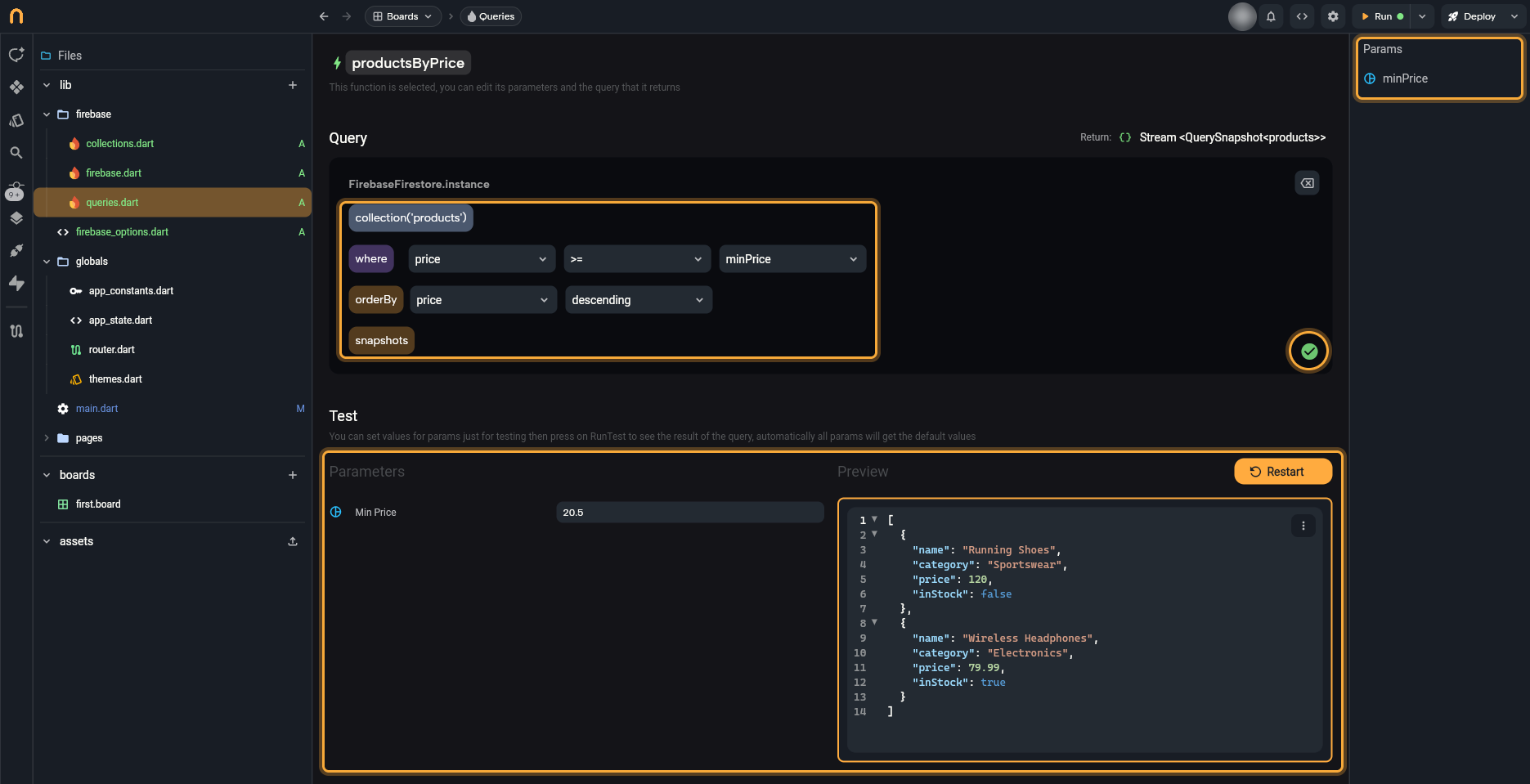
The preview shows your documents as JSON (a plain-text list of fields and values), "Data was added successfully" after an add, or "No Data was found." for an empty result. If the query fails, an Error: line with the message appears under "No Data was found."
Test runs against your real database. add, set and delete change real data, so test them on a throwaway project.
On the Windows desktop app, a message covers the Test section: "Testing Firestore Queries isn't possible on Windows version". See Firebase on Windows for ways around it.
Use a query in your app
Show the results. Wrap the widget that should show them, such as a List View, in a Data Builder. It loads the data and hands it to the widgets inside.
- Select the widget, click Add Wrapper and choose Data Builder.
- In Details, set Source to Firestore.
- Next to Query, click the button and pick your query in Select Firestore Query. Fill in its parameters below, if it has any. If the list is empty after you reopen the project, click Refresh/Update apps and config files in Settings → Integrations → Firebase.
- Inside the Data Builder,
dataholds the result. For a list,data.docshas one entry per document, and each entry'sdata()holds your fields, such asnameandprice. To fill a List View, follow Show a list and connect List todata.docs.
On the board, Nowa doesn't call Firestore. A list shows three placeholder documents built from your collection's fields, and text reads like [title], so you can design the layout before real data arrives. Click Play on the screen, or run the app, to see your real documents. In the Windows desktop app, click Run instead: the Embedded preview runs the web version of your app. Or run it on an Android emulator or a phone.
Run it from an event. To save an order when someone taps Place order, for example, use Circuit. Add a node from the FIREBASE category and pick your query. If your queries are missing there, refresh the same way. Set its parameters. A query that ends in get, add, set or delete returns a Future, so use Future Options for what happens next. For add and set, pass a model object: the document's fields, filled in.
Prefer to describe it? Ask Nowa AI in Agent mode, for example: "Show the documents from my orders query in a list on the Orders screen." Check it with Play.