Sign users in with Firebase
With Firebase Authentication, people can create an account in your app and sign in with an email and password, their Google account or their phone number. You switch on the methods you want, Nowa writes the sign-in functions for you, and you connect them to your buttons the same way you'd make a button open a screen.
Before you start
- A project connected to Firebase. See Connect Firebase.
Turn on sign-in methods in the Firebase console
Firebase only lets people sign in with methods you've switched on in your Firebase project, so start there.
- In Nowa, open Settings → Integrations → Firebase and click Enable on Firebase. under the Authentication switch. Your project's Authentication page opens in the Firebase console. You can also get there from the console's menu: Security → Authentication.
- Open the Sign-in method tab.
- Turn on each method your app will offer, and click Save:
- Email/Password: people sign up with their email address and a password they choose.
- Google: people use their Google account.
- Phone: Firebase sends a code by text message (SMS), and people type it into your app.
A few methods need one more thing, depending on where your app runs:
- Google or Phone on Android: add your app's fingerprints. See Add SHA fingerprints below.
- Phone on iPhone: Firebase checks that each request really comes from your app. With the same Apple push setup as notifications, it checks silently: see Set up notifications for iPhone. Without it, Firebase falls back to a reCAPTCHA check (Google's "I'm not a robot" test). Nowa 3.13 also has an iPhone catch here: see Functions Nowa adds.
- Google or Phone on the web: Firebase only allows them on web addresses it knows. In the console, open the Settings tab of Authentication, find Authorized domains and click Add domain for each address your web app uses, such as the one Nowa gives you when you publish to the web or your own domain.
Firebase's guides cover each method: Email/Password, Google and Phone.
Turn on Authentication and add providers
Now tell Nowa which methods to set up in your app.
- Open Settings → Integrations → Firebase.
- Turn on Authentication. Add Provider appears below the Push Notifications (FCM) section. The status bar may then show an error that starts with "Unsupported operation: Unsupported invalid type" while Problems says "No issues detected". You can carry on. See Known issues.
- Click Add Provider. Once Email/Password or Google is on, the button reads Manage Providers.
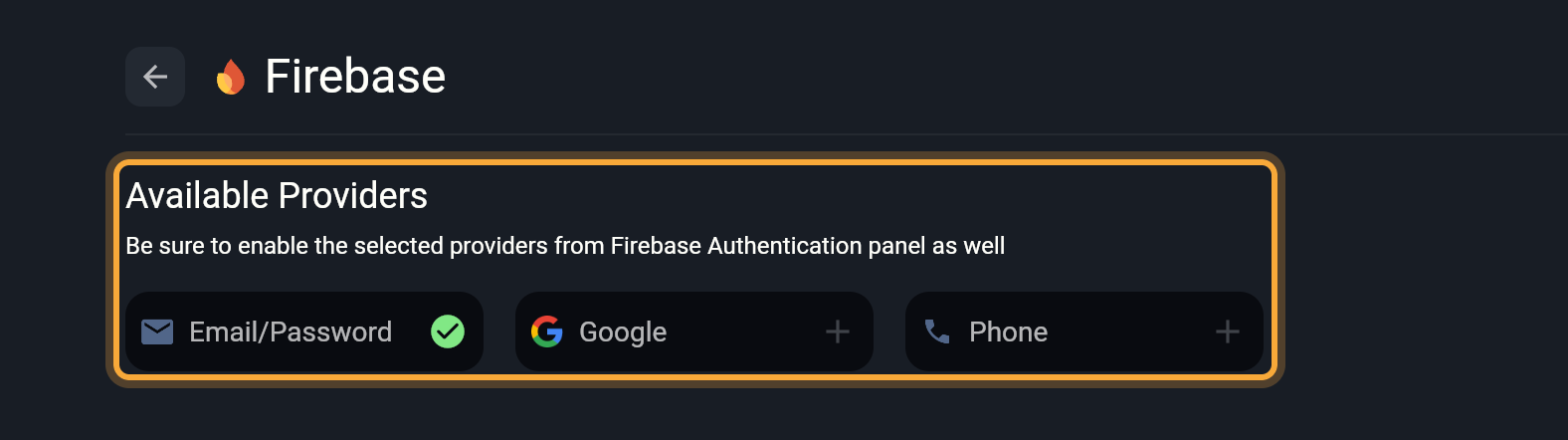
- On Available Providers, click the + on Email/Password, Google or Phone. A check mark means the provider is on. Click the check mark to remove it again.
- Click the back arrow. The Providers row shows an icon for each provider that's on.
If adding Google shows the red message "Exception: Must Enable Google Authentication on Firebase", Google isn't switched on in the Firebase console yet. Turn it on there, then try again.
If your iOS app offers Google sign-in, read App Store Review Guideline 4.8 Login Services before you submit it. It names Google Sign-In. And if people can create accounts in your iOS app, Apple also requires a way to delete the account inside the app. The functions Nowa adds don't include one: see Follow Apple's rules.
Functions Nowa adds
Each switch and provider adds ready-made functions. You find them in Circuit, in the FIREBASE category, by these names:
| Function | Added by | What it does |
|---|---|---|
signOut() | Authentication | Signs the current user out. |
isUserSignedIn() | Authentication | Answers yes (true) when someone is signed in. |
currentUser | Authentication | The signed-in user, such as their email, or nothing when nobody is signed in. |
sendVerificationEmail() | Authentication | Emails the signed-in user a link to confirm their address, if it isn't confirmed yet. |
signUpWithEmailAndPassword(email, password) | Email/Password | Creates an account with that email and password. The new user is signed in right away. |
signInWithEmailAndPassword(email, password) | Email/Password | Signs in someone who already has an account. |
sendPasswordResetEmail(email) | Email/Password | Emails a link to choose a new password. |
signInWithGoogle() | Signs in with a Google account. On the web it opens Google's sign-in window. | |
verifyPhoneNumber(phoneNumber) | Phone | Texts a code to that number and returns a verification ID. |
signInWithPhoneNumber(verificationId, smsCode) | Phone | Signs in with the verification ID and the code the user typed. |
Google also adds the settings your iOS app needs for it. Phone needs one too (Firebase uses it for the reCAPTCHA check), but in Nowa 3.13 it's only added while Google is on as well. Without it, your iPhone app closes as soon as it tries to send the code, so try phone sign-in on an iPhone before you offer it there.
In Nowa 3.13, the Google provider writes signInWithGoogle() for an older version of Google's sign-in package than the one Nowa installs. Instant Play doesn't show it, but a real build of your app (Run or a cloud build) fails with errors that mention GoogleSignIn. If you see them, this is the cause. Turning Google off removes the function and the package.
Use the functions in your screens
You call these functions from an event, such as a button's On Pressed (what happens when someone taps it).
- Select the widget, such as a button.
- In Details, click + next to the event. If the event already has logic, the button reads Edit. Circuit opens.
- Hover the dot under a node and click +. The All nodes for this circuit menu opens.
- Open the FIREBASE category and pick a function. The category appears once Firebase is connected.
- Fill in its inputs with your own values, such as variables that hold what the user typed.
- Most of these functions take a moment, because they wait for Firebase to answer (a Future). Select the node and find Future Options in Details. Click + next to onValue for what happens after a successful sign-in, such as opening the home screen. The onError function it creates runs when sign-in fails, which is the place to tell the user what went wrong. See Wait for a result.
To skip the login screen when someone is already signed in, use isUserSignedIn() in the Redirect Logic of your home screen's route. See Start on the login screen or the home screen.
Prefer to describe it? Once a provider is on, ask Nowa AI in Agent mode, for example: "Build a sign-in screen with email and password fields that signs the user in with Firebase and opens the home screen." Check the result with Play and in Problems.
Build an email sign-in flow
A complete email sign-in is a handful of small screens and buttons. Here's how each piece maps to a function:
| Where | Function |
|---|---|
| Create account button on your sign-up screen | signUpWithEmailAndPassword, with the email and password the person typed. It signs them in too. |
| Right after sign-up, in onValue | sendVerificationEmail, so they can confirm the address is really theirs. |
| Sign in button on your sign-in screen | signInWithEmailAndPassword |
| Forgot password? button | sendPasswordResetEmail, with the email the person typed. |
| Sign out button, for example on a profile screen | signOut. Then open your sign-in screen. |
For each screen, add the text fields first and keep what people type in variables (a variable is a value your screen remembers, such as the email someone typed). Then wire the button as in the steps above. In onError, show a short message, for example with a snackbar, so people know when their password is wrong or the email is already taken.
Phone sign-in works in two steps. First call verifyPhoneNumber with the number the person typed, including the country code (such as +44 7123 123456). Keep its result, the verification ID, in a variable. When they type the code they received, call signInWithPhoneNumber with that ID and the code. On some Android phones Firebase reads the code by itself and signs the person in at once; the result is then empty, because they're already signed in. Phone sign-in works on real devices and on the web. To try it on an emulator, or without sending real text messages, add test numbers in the Firebase console: open the Phone provider, use Phone numbers for testing and enter a number with a code of your choice.
Test sign-in in Nowa
In Instant Play (Play), signInWithGoogle(), signUpWithEmailAndPassword(), signInWithEmailAndPassword() and signInWithPhoneNumber() don't contact Firebase. Each opens a preview dialog instead, so you can try both outcomes without real accounts. Choose Test with fake user to simulate success, or the other button to simulate an error. The Google dialog uses Test with fake Google user and Test error signing in.
In the same way, currentUser returns a placeholder user whose values read [email] and [displayName], and isUserSignedIn() returns false. To try real sign-in, run your app on a simulator or a device. See Run on a device or emulator.
Add SHA fingerprints for Google sign-in on Android
When someone taps "Sign in with Google" in your Android app, Google checks that the request really comes from your app and not from a copy of it. It does that with your app's SHA fingerprints: short codes calculated from the digital key your app is signed with. Firebase needs to know these fingerprints, or Google sign-in fails on Android. Firebase's phone sign-in on Android uses them too.
Your Android app can be signed with different keys, depending on how it reaches the phone:
| How the app reaches the phone | Signed with | Add its fingerprints |
|---|---|---|
| A release build from Nowa (Settings → Deployment) | Your Nowa signing key | Step 3: one click each |
| Downloaded from Google Play | Google's app signing key | Step 4 |
| Run from the desktop app on an Android emulator or phone | Your computer's debug key | Step 5 (uses a terminal) |
- On the Firebase page, click Setup under SHA Certificate Fingerprints (For Google Sign in).
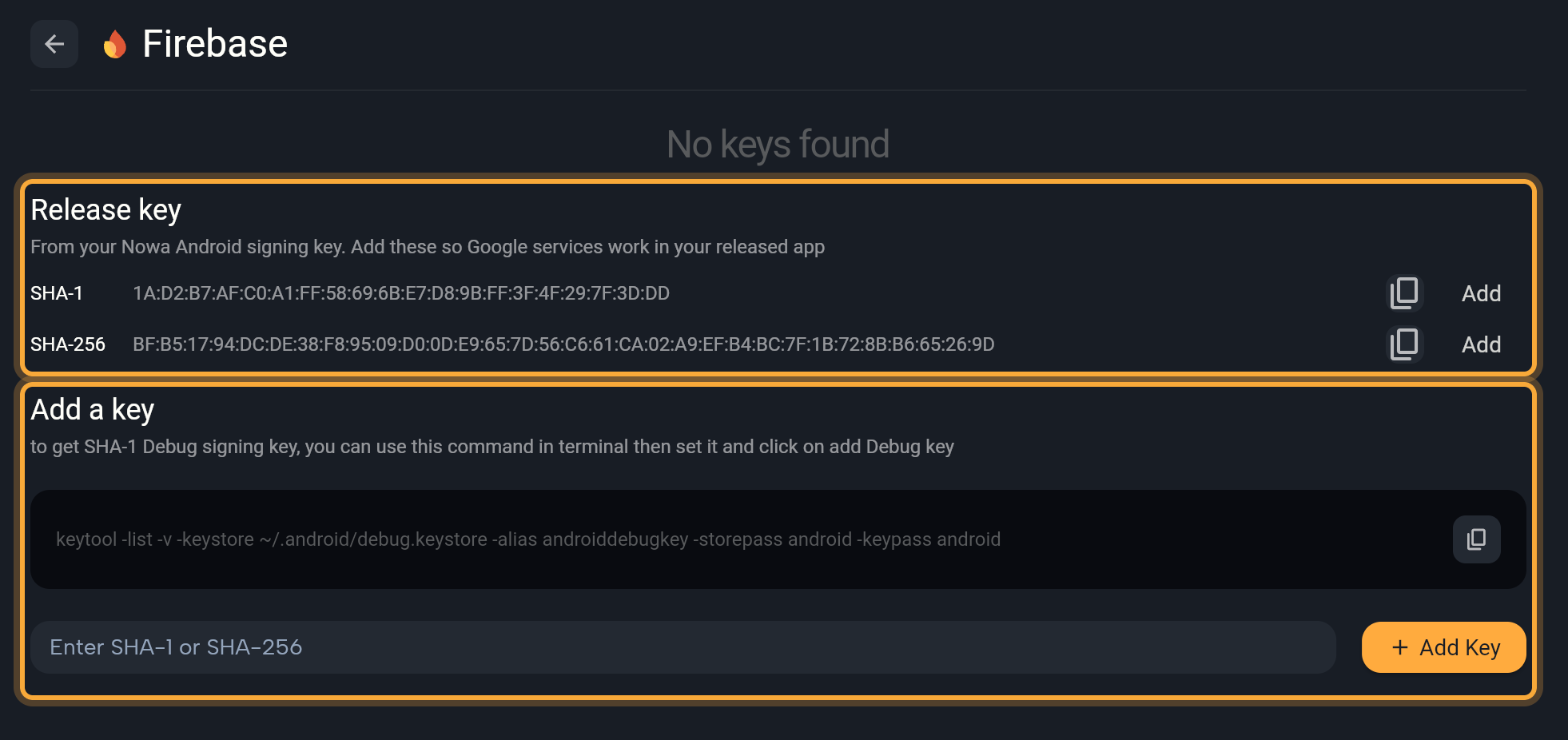
- The table lists the fingerprints Firebase already has for your Android app, with their Type. It reads "No keys found" when there are none.
- Under Release key, click Add next to SHA-1 and SHA-256. A check mark replaces Add once the key is in Firebase. This section shows up when Nowa can get the fingerprints of your project's Android signing key. If it's missing, create the key first. See Create a signing key.
- If your app is on Google Play, Google signs the copy people download with its own key, so add that key too. In Play Console, go to Protected with Play → Play Store distribution → Go to Play app signing, scroll to App signing key and copy each fingerprint. Paste each one into Enter SHA-1 or SHA-256 and click Add Key.
- To use Google sign-in when you run your app from the desktop app on an Android emulator or phone, add your computer's debug key. This step uses a terminal:
- Copy the
keytoolcommand under Add a key and run it in a terminal on that computer. - Copy the SHA-1 it prints.
- Paste it into Enter SHA-1 or SHA-256 and click Add Key. The key appears in the table.
- Copy the
- Go back and click Refresh/Update apps and config files, so your app's Firebase settings include the new fingerprints.
Rather not use a terminal? Test sign-in with a release build instead: its .apk installs straight on your phone and is signed with your Nowa key from step 3. See Download your files.
When you paste a fingerprint, keep its colons but leave out the SHA1: label that keytool prints in front of it. Nowa treats a value of exactly 59 characters as SHA-1 and anything else as SHA-256.
Google's own guides explain the keys: Client authentication and Use Play App Signing.
Turn Authentication off
Turn off Authentication to remove every function in the table above except sendPasswordResetEmail(), which stays behind. Nowa also switches the providers off and removes the sign-in package that function relies on, so it can't work any more and can break your app's build. To remove it, ask Nowa AI in Agent mode, for example "Delete the sendPasswordResetEmail function from my Firebase service", then check that Problems shows no errors and that your app runs. If you work in code yourself, you can delete it in code mode.