Manage project files
Two panels look after your project's files. In the designer, the Library adds, renames, moves and deletes your screens, widgets, models and assets. In code mode, Files shows every file in the project as a tree, including the ones Flutter itself needs. Most days the Library is all you need; Files is there when you want to see everything. The Search panel finds any line of code.
Open the Library or Files
The Library and Files share one place in the left sidebar, second from the top. Click the icon to open the panel, and again to close it.
- Library: outside code mode, click Library or press Ctrl/Cmd + 2. It lists what your
lib/folder (where your app's code lives) declares, in folders, and its chips add your packages, Nowa's built-in widgets and your assets. Click a row for a details card with a preview. Double-click it, or press Enter, to open it. - Files: in code mode, the folder icon (Files) takes the Library's place and opens by itself. Ctrl/Cmd + 2 opens it too. It lists the whole project, including
pubspec.yaml(the project's settings file) and the platform folders Flutter builds each platform from, with folders closed. It has no add buttons, so leave code mode and use the Library. Click a file to open it in a tab, and the tree follows the tab you have open.
Names in the Files tree carry markers:
*after the name means the file has unsaved changes.- A number after the name means the file has problems, and the name turns red. See Find and fix problems.
- In a project that uses Git, a letter shows a changed file: A added, M modified, D deleted, R renamed or C conflict. See Use Git.
The Library shows the red problem count too, on rows and on their folders, but no * and no Git letters.
Nowa doesn't load .git/, build/ or .DS_Store, and the Files tree doesn't list top-level items whose names start with a dot, such as .nowa.
A .board file stores one board, and the Library doesn't list boards. In code mode, clicking a .board file shows "Code view is not available for boards" in the editor and adds no tab. Leave code mode and pick the board in the Boards chip in the top bar instead. See Work with boards.
Add files
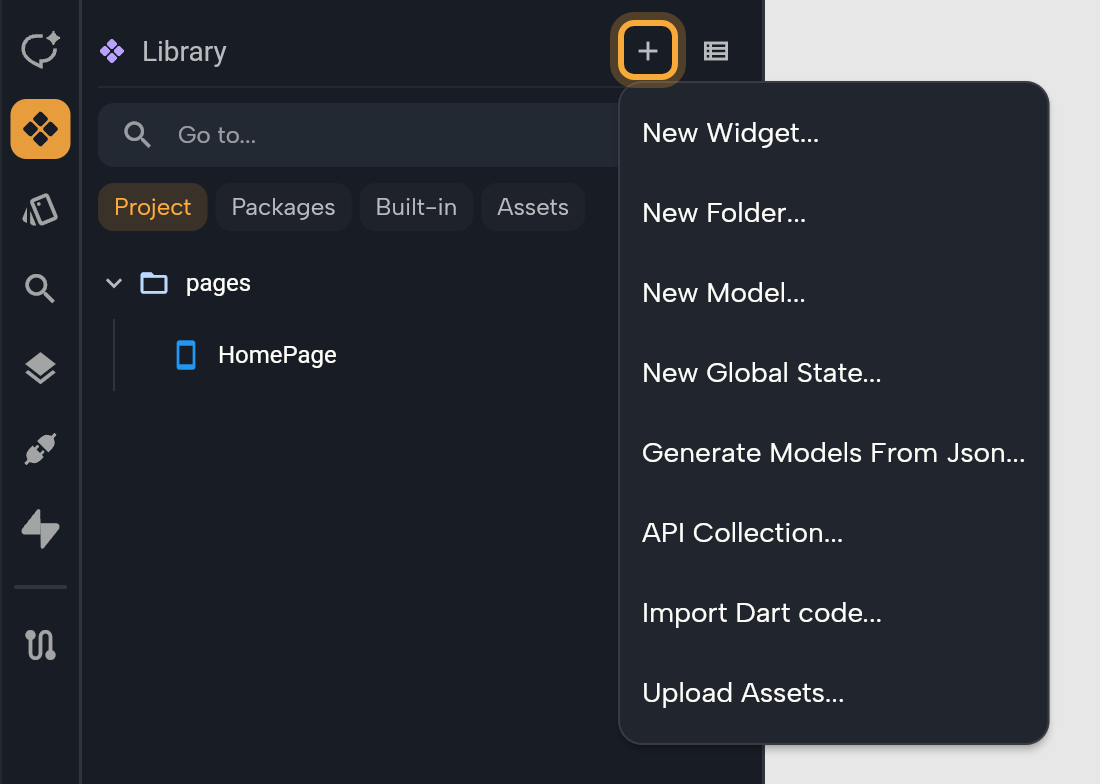
In the Library, click Add (+) in the header and choose what to make.
| Item | What it creates |
|---|---|
| New Widget... | A screen or component from a template. See Start from a template. |
| New Folder... | A folder in lib. It goes inside the lib folder you clicked last in the Library (for a widget or another row, the folder that holds it), or directly in lib. The dialog is titled New Directory in followed by that folder's name. |
| New Model... | A data model in lib/models. See Data models. |
| New Global State... | A global state in lib/globals, attached to your app. See Share data across your app. |
| Generate Models From Json... | Model classes built from JSON. See Data models. |
| API Collection... | A REST API collection in lib/api. See Connect a REST API. |
| Import Dart code... | Dart you paste or load from a file. See Write your own code. |
| Upload Assets... | Files you pick on your computer, saved in assets, or in the assets subfolder you clicked last (for a file, its folder). See Images, videos and other files. |
A model or global state asks for a name: a valid Dart name that nothing else in your project uses and that isn't a Dart keyword.
The Library's Filter starts on Widgets, so a new model or global state stays hidden until you choose Everything, Models or Global states. A folder shows in the Library only when something is in it. In the playground, a new empty folder isn't in the Files tree in code mode either.
To add a board, click Create new board in the Boards chip in the top bar, or press Ctrl/Cmd + Shift + B (see Work with boards). In code mode, a blank tab (Ctrl/Cmd + T) offers New Widget and Upload a File too.
Or ask Nowa AI: "Add a Product model with a name and a price." It creates the file for you.
Rename, move and delete files
In the Library, right-click a row for Insert, Open, Rename, Delete and Show in code, and drag a row onto a folder to move it. Things in lib stay in lib, and assets stay in assets. The Library works on one row at a time.
In code mode, right-click a file or folder in Files. Nowa selects the row first. Ctrl/Cmd-click adds a row to the selection and Shift-click selects a range, so one action can cover several files. With the View Only role, the menu has only Copy as path and View in folder.
| Menu item | What it does |
|---|---|
| Remove file | Deletes the file after you confirm. With several files selected it reads Remove N files. |
| Rename | Edits the name in place, for one file at a time. Type the name without the extension and press Enter. Nowa updates the imports in files that use it. Key: F2. |
| Cut | Cuts the selected files. Key: Ctrl/Cmd + X. |
| Paste | Moves the cut files into the selected folder, or into the folder of the selected file. Key: Ctrl/Cmd + V. |
| Copy as path | Copies the path. |
| View in folder Local projects | Opens the folder on your computer. |
| Show file content | Opens the file's text in a tab. With several files it reads Show files content. |
To move files, drag them onto a folder. Several selected rows drag together. Files in lib can move only within lib, files in assets only within assets, and .board files only within boards. A folder can't move into itself. Nowa updates imports when you move a Dart file.
In the tree, the arrow keys move between rows, Enter opens a file or opens and closes a folder, and Delete (Backspace on macOS) removes the selected files. Shift with an arrow extends the selection.
Before a delete, Nowa asks "Are you sure you want to delete…?". If other files use something declared in the file, Nowa lists those uses and asks again. Open tabs for the file close.
Ctrl/Cmd + Z undoes a delete while the Files panel has focus. lib/main.dart can't be deleted: Nowa shows Cannot delete file and leaves it alone.
Search the project
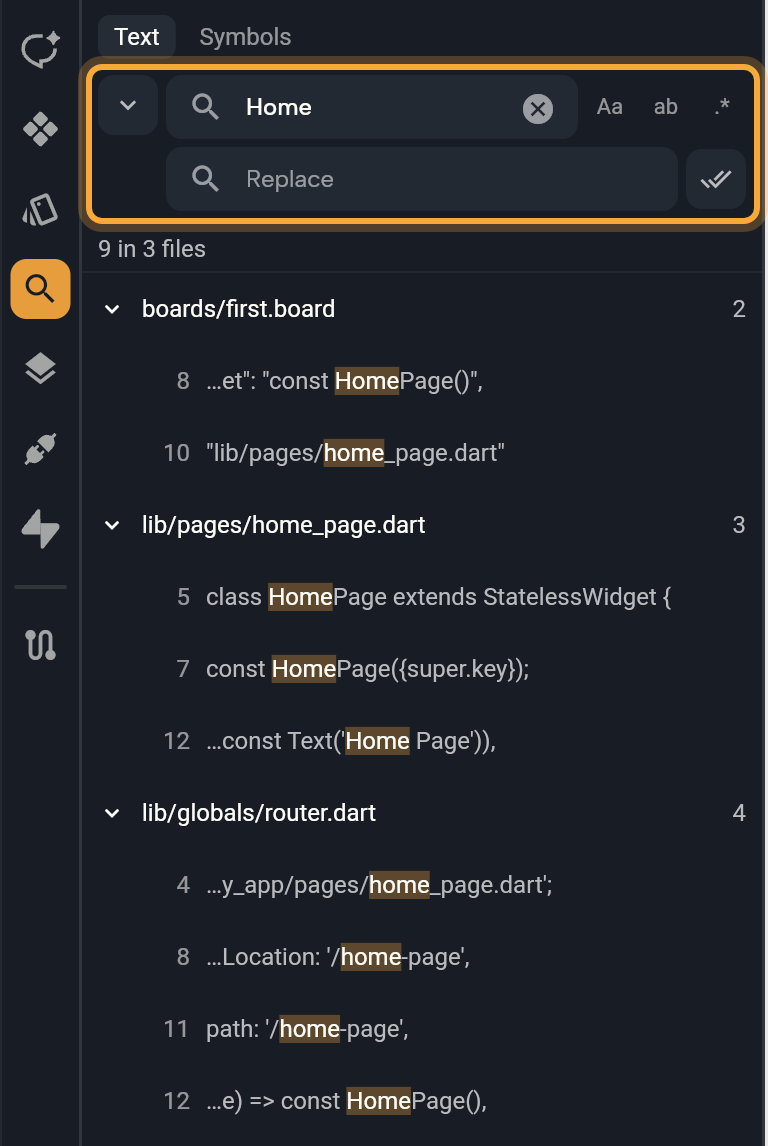
Click Search (the magnifier) in the left sidebar, or press Ctrl/Cmd + Shift + F. The chips at the top switch between Text and Symbols.
Search text
- Type in Search. Results appear after a short pause, grouped by file, each with a match count.
- Turn on any of Aa (Match case), ab (Whole word) or
.*(Regular expression). - Click a match. If the match sits inside a widget on the open board, Nowa selects that widget and zooms to it. In every other case, and always in code mode, Nowa opens the file.
- Click a file's row to collapse its matches.
The search covers the whole project, including edits you haven't saved. It reads lines one at a time, so a pattern can't span two lines.
It skips images, fonts and other binary files, .g.dart files and folders such as build. It stops at 2,000 matches, and a count with a + means there are more.
Replace in many files
- Click the arrow at the left of the Search field (Show replace).
- Type the new text in Replace.
- Click Replace all (the double check mark). A dialog asks "Replace N matches in M files?".
- Click Replace.
If a file changed after the search, Nowa skips it and says "Skipped N files that changed since the search". Click Replace all again to include it.
Replace all writes straight to your files, and Undo doesn't cover those writes. A file open in a code mode tab is the exception: the change lands in the editor, where you can undo it, and is saved with your next save. Check the matches first, or commit with Git so you can review the result.
Search symbols
Switch to Symbols, then type a name. Nowa lists classes, functions, variables, parameters, uses of the name and literal values that contain it. Each row says what it is, for example "Class: HomePage", or "Reference: HomePage" for a place that uses the name. Most rows also show their file.
Click a row to open it. A screen or component opens on the board, a function opens in Circuit, and anything else opens its file. Hover a use of a name and click Go to Declaration of to jump to where it's defined.
Search for a file by name
In code mode, press Ctrl/Cmd + O, type part of a file name, and press Enter. The picker lists the files in lib/ with their paths, and Esc closes it. It skips folders that tools generate: .dart_tool, .git, .gradle, .idea, .symlinks, build, ephemeral, node_modules and Pods.
On the board, the same keys open the Library's search with the hint Go to..., and Enter opens the first result. See Find and add things with the Library.
Next steps
- Edit code in Nowa: open a file and change it.
- Write your own code: add files of your own and use them on the board.
- Find and add things with the Library: everything the Library can do.
- Images, videos and other files: add and use assets.
- Keyboard shortcuts: move faster in the tree and the editor.