Write prompts that work
Clear prompts get you closer to the app you have in mind, with fewer rounds of corrections. You don't need technical words. Describe what people will see and do, ask for one thing at a time, and point at the part you mean.
Describe your app
Your first prompt sets the direction for the whole app, so give Nowa AI the big picture. A few sentences in Design mode are enough. Try to cover:
- Who it's for and what it helps them do. "A booking app for my salon, so clients can book without calling."
- What people do in it. "Clients pick a stylist, a service and a free time slot."
- What it keeps track of. Bookings, stylists and services.
- The main screens. "The home screen shows their upcoming bookings."
- The look and feel, if you have one in mind. "Calm and modern, with soft greens."
Nowa's own example prompts follow the same shape. Click Habit Streak Tracker under Or try an example prompt on the dashboard, and Nowa fills the What do you want to build? box with this:
A habit tracking app where users build daily routines and watch their streaks grow. Each habit should have a custom color, icon, target frequency, and reminder time, with a heatmap calendar showing consistency over months. Include a weekly summary screen with completion rates, longest streaks, and gentle nudges when a streak is about to break.
It says what the app is for, what it keeps track of and which screens it needs. Other chips, such as Split the Bill, fill in other ideas, and the refresh button shows more. From there, Design mode designs your screens with demo data, and Make it real turns them into working features one at a time. Build your first app walks you through it.
Start with what Nowa suggests
Nowa drops hints in a few other places too:
- The chat field changes its hint with the mode: "Describe the app you want to build..." in Design, "What would you like to plan?" in Plan and "Build something wild..." in Agent.
- Starter chips in an empty Plan or Agent chat fill in a full prompt you can edit before you send it. See Chat with Nowa AI.
- The dashboard box types out ideas while it waits, such as "A habit tracker with streaks and reminders..." and "A booking app for my salon...".
Tips that help
- Describe what people see and do. "Clients pick a stylist, a service and a time slot" works better than "add a booking form".
- Start wide, then ask for one job at a time. Describe the whole app once in Design mode. After that, ask for one screen or one feature at a time: "Add a search bar to the product list screen" is easier to review, and to undo, than "Build me a full shopping app with everything".
- Say what it's for. Who uses the screen, how they move through it and what matters most on it help Nowa AI make fewer guesses.
- Plan big or unclear work first. Use Plan mode and answer its questions. A choice marked (Recommended) is Nowa AI's suggestion, and Other... lets you type your own answer. See Design, Plan and Agent modes.
For habits that keep Nowa AI's changes accurate and easy to review, such as small steps and checkpoints, see Get the best from Nowa AI.
When a request has several parts, this order keeps it clear: what you're building, the details that matter, the job, and any rules.
Goal: I'm building a booking app for my salon.
Details: Clients pick a stylist, a service and a free time slot.
Task: Design the booking screen.
Rules: Use my theme colors. Keep it to one screen.
Be specific about looks and behavior
Words like "nice" or "beautiful" mean different things to different people. Say what you picture instead, and Nowa AI gets closer on the first try.
| Instead of | Try |
|---|---|
| Make it look nice | Use a dark theme with high-contrast text |
| Add some beautiful styling | Rounded card corners with subtle shadows |
| Make it responsive | Make the layout work on phones and on wide web screens |
| Make the button work | When I tap Save, show a message that says "Saved" |
Improve the result step by step
Treat the first result as a draft. Look at it on the board or play the screen, then ask for changes one at a time, the way you'd give feedback to a designer.
- Say what to change, and how. "Make the prices bigger and green" gets you further than "fix the prices".
- Select, then ask. Click a card on the board and type "Make this card's corners rounder", so Nowa AI knows which card you mean. See Give Nowa AI context.
- Build on what's there. "Add a Settings screen that looks like the Profile screen" works best with the Profile screen attached: type
@and pick it, or use +. - Let Nowa suggest the next step. After a request, Nowa AI may offer up to three follow-ups under Suggested next steps. Click one to fill in its prompt, then edit it or send it.
- Ask questions. Not sure how something works? Ask, for example: "What happens when someone taps Book without picking a time?" In an empty Agent or Plan chat, the Summarize chip writes a prompt that asks for a short summary of your project.
- Start a new session for a new topic. Old context can carry over and muddle the next request, so click + (New Session) when you move to an unrelated feature. See Undo AI changes and reopen chats.
| A clean start | Mixed topics |
|---|---|
| A new session, with the Orders screen attached: "Add filters for order status and date to this screen." | In the session about the home screen's colors: "Also add Supabase sign-in and password reset." |
When the result isn't right
It happens: Nowa AI misread the request, or the result looks off. You can always get back on track, and your published app doesn't change until you publish again.
- Say what's wrong, and point at it. Select the widget or screen on the board, then describe what you see and what you expected: "The booking list is empty. It should show the sample bookings."
- Undo and rephrase. Hover the dotted line above the reply and click Restore Checkpoint to undo that request, then send a clearer prompt. A restore also undoes the later requests in the same session. See Undo AI changes and reopen chats.
- Fix small things by hand. A color, a word or some spacing is often quickest in the Details panel. See Change widget properties.
- Plan first. If Nowa AI keeps guessing wrong, switch to Plan and answer its questions before anything is built.
- Start fresh. If the conversation goes in circles, start a new session and describe the goal again in one message, with the screen attached.
Fix errors
Errors happen while you build, and Nowa AI can help you fix them. The red number in the status bar at the bottom of the editor counts the errors Nowa finds. Click it to see them in Problems.
- Use the buttons. Fix with AI (on a preview that won't start or a failed web publish) and Explain with AI (on a failed build step) send the error to the chat for you. If Nowa AI is busy, the prompt waits in the chat field until you send it.
- Describe the problem. "The checkout screen shows an error when the cart is empty. Find the cause and fix it." To pass on an exact message, click the problem in Problems, choose Copy, and paste it into your prompt.
- Go one problem at a time. "Fix all errors in the project" works well when there are only a few, and the Fix starter chip writes a prompt like that for you. With many errors, ask for one screen or one problem at a time, so each fix is easy to check, and to undo.
- Run the app for bugs you only see while it runs. Click Run, repeat what went wrong, then ask Nowa AI to check the logs.
Use Agent mode for fixes, because Plan mode never changes your project. See Find and fix problems.
Example prompts by task
| Task | Mode | Prompt |
|---|---|---|
| Start an app | Design | A booking app for my salon. Clients pick a stylist, a service and a free time slot. The home screen shows their upcoming bookings. |
| Add a screen | Design or Agent | Add a profile screen with the user's photo, name and email, and a button to log out. |
| Change one widget | Select it on the board | Make this button full width, with rounded corners and the primary color. |
| Restyle the app | Design | Make the whole app feel calmer: softer colors, more spacing and rounded cards. |
| Add behavior | Agent | When I tap Save, show a message that says "Saved". |
| Open a detail screen | Agent | When I tap a product in the list, open a detail screen that shows its name, photo and price. |
| Fix a problem | Agent | The checkout screen shows an error. Find the cause and fix it. |
| Use an API | Agent | Show the products from this API on the home screen: curl -X GET 'https://api.example.com/products' -H 'accept: application/json' |
| Use an image | Agent, image attached | Use the attached image as the logo on the first screen. |
| Set a font | Agent | Use the Poppins font for all headings. |
| Plan a feature | Plan | Plan a Favorites feature: users save recipes and see them on a Favorites screen. |
| Build a backend | Agent, Supabase connector on | Create a tasks table where each person sees only their own tasks, then list them on the home screen. |
| Use a Figma design | Agent, Figma connector on | Bring the icons from my Figma design into the project and use its colors and text styles as the theme. |
The API example uses a cURL command: the sample request most API docs show for each call. Paste it as it is, and Nowa AI builds the request from it.
Describe a screen in detail
When you know exactly how a screen should look, a long, detailed prompt in Design mode saves rounds of changes. List every part from top to bottom, then the colors, shapes and text style. Here are two you can adapt.
Design a mobile profile screen UI. At the top, display the user's ID, profile picture, full name, and email address on a dark background. Below, arrange six rounded square buttons in a 2x3 grid with soft shadows. Each button should have an icon and label:
Settings
Notifications (with a red badge showing unread count, e.g., 7)
Verification
Support
Referral
Legal
Keep the design simple, with a dark background and clear, bold text. The layout should be easy to use and centered.
Create a clean and simple mobile stopwatch app interface. Display "Stopwatch" as the title at the top with a turquoise stopwatch icon. Show the time in large, clear digits as "00:00:00" in the center. Below that, place a blue "Start" button with rounded corners. Use a white background with modern, legible text. Focus only on the stopwatch functionality with high readability and mobile-friendly button sizing.
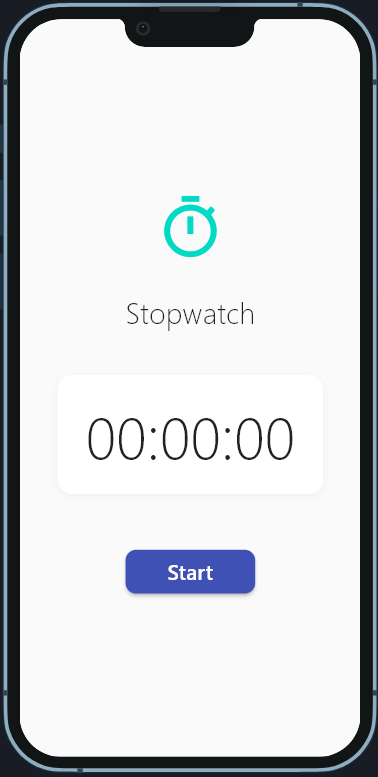
Design mode builds the look without logic, so the stopwatch's "Start" button won't run the timer yet. Once you like the design, switch to Agent mode and ask: "Make the Start button start and stop the timer." Get the best from Nowa AI shows how to spell out behavior like this, case by case.
These are starting points. Change the names and details to fit your app. Nowa AI decides how to build each request, so results vary: review them and ask for changes.
Save standing rules with Custom Instructions
Custom Instructions are rules that go along with every request you send in a project, so you don't have to repeat them. Use them for preferences that don't change, and keep one-off requests in the chat.
- Click ⋮ (Options) in the AI Assistant header, then Custom Instructions.
- Type your rules. The empty box suggests "Always use concise language", "Prefer specific widget types" and "Follow certain coding patterns".
- Click Save. Nowa confirms with "Custom instructions saved successfully". Reset puts back the last saved text.
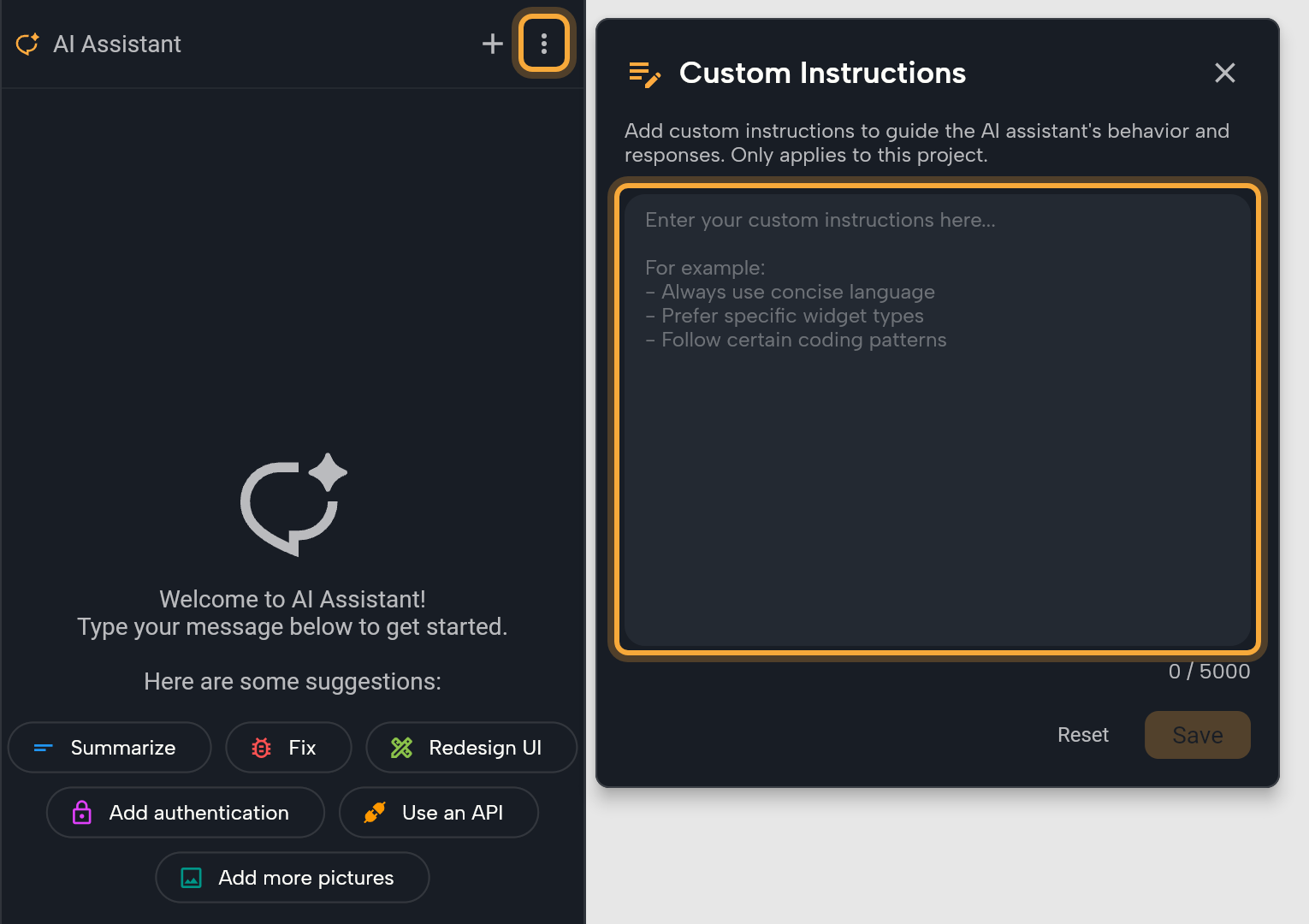
For example:
- "Write all text in the app in a friendly, casual tone."
- "Keep screens simple, with large buttons that are easy to tap."
- "For sample photos, use free images from Unsplash."
A few things to know:
- They apply to this project only, and they're saved with it: they're still there when you come back, and anyone who works on the project gets them too. A connected external agent receives them as well. Working in the code? See What Nowa adds to your code.
- The limit is 5,000 characters. The counter shows how much you've used, and Save is disabled above the limit.