Get the best from Nowa AI
Nowa AI does its best work when you steer it: the right mode, the right context and one clear job at a time. Think of it as a fast, capable teammate who needs a clear brief. These habits keep its changes accurate and easy to review, and keep you in control of the result.
Pick the right mode and level
- Design is for the look and flow of a new app, or for restyling. It builds with demo data and doesn't touch a backend, so it's a safe place to explore ideas.
- Plan is for big or unclear work. Nowa AI reads your project, asks questions and writes a plan, and changes nothing. Click Implement this plan when you like it.
- Agent is for everything that has to work: logic, data, packages (ready-made add-ons for your app), files, Figma and Supabase.
- The thinking level sets how much Nowa AI reasons before it acts. Instant suits small edits, Thinking suits most requests, and Deep Thinking suits big features and tricky logic.
Fix with AI on an error sends its ready-made prompt in the active mode, and Plan never changes your project. Switch to Agent first if you want the fix applied. See Design, Plan and Agent modes.
Give it the right context
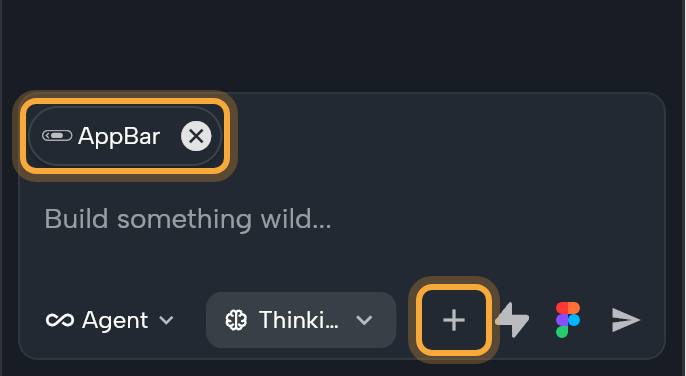
- Select what you mean. Nowa attaches the selected widget to your next message as a chip above the chat field. Check it before you send, and click × to remove one you don't mean.
- Attach a screen or component with + (Add context) or
@. "Build Settings like the Profile screen" works best with Profile attached. - Attach an image as a design reference or a logo. To put a logo in your app, say so, and Nowa AI saves it to your assets. The limit is 5 images.
- Attach less, not more. Nowa AI can look around the project itself, so one focused attachment keeps its changes accurate.
See Give Nowa AI context.
Describe behavior the way people see it
When something in your app behaves differently depending on what's going on, describe each situation the way a user sees it: what's on screen and what happens when they tap. You don't need any technical words. For example, in Agent mode:
A stopwatch with one button. When it shows 0:00 and isn't running, the button says Start and starts it. While it runs, the button says Stop and pauses it. When it's paused, the button says Reset and sets it back to 0:00.
A description like this leaves Nowa AI little to guess, and it doubles as your test plan: play the screen and try each case.
Work in small steps
- Start wide, then go narrow. Describe the whole app in Design mode, then ask for one screen or feature at a time.
- Ask for one job per request. "Add a search bar to the product list" is easier to review, and to undo, than "build everything".
- Check each result on the board or with Play, then ask for the next change. Suggested next steps can write the next prompt for you, and nothing is sent until you press Send.
- Start a new session. Click + (New Session) in the panel header when you move to an unrelated topic, or when Nowa says the session is getting long.
- Edit by hand in between. Nowa AI always works from your latest version, including the changes you've made by hand.
Write prompts that work has a shape that suits bigger requests.
Undo with checkpoints
Every request that edits your project's files gets a checkpoint, so trying an idea is low-risk. To undo a request, hover the dotted line above its reply and click Restore Checkpoint.
- A restore also undoes every later request in the session, and your own edits to those files since. Reapply Checkpoint brings back the AI's version.
- Package changes, downloaded fonts, Figma imports and Supabase changes aren't recorded, so a restore leaves them in place.
- Checkpoints are an undo button, not a backup: Git doesn't save them. Keep a Git commit or a downloaded copy of any version you want to be able to return to.
Look at a result before you edit on top of it, and if you use Git, commit before a big request. See Undo AI changes and reopen chats.
Save standing rules with Custom Instructions
Put rules for every request in Custom Instructions (up to 5,000 characters), from the ⋮ menu in the AI Assistant header. They apply to this project only and are saved with it, so you don't have to repeat yourself. Good candidates:
- "Use theme colors and text styles, never fixed colors."
- "Put anything used on more than one screen in a component."
- "Explain each change in one sentence."
Use connectors for your backend and design files
Connectors let Nowa AI work directly in other tools you use.
- Turn on Supabase (the icon in the chat field), switch to Agent mode and ask for backend work: tables, Row Level Security policies (rules for who can read and change each row), functions and migrations (recorded changes to your database's structure). For example: "Create a tasks table where each person sees only their own tasks, then list them on the home screen."
- Turn on Figma to bring in images, icons, colors and text styles from your design.
- Connectors switch off when you reopen the project.
- Read each Approval Required card before you click Approve. Auto-approve tools, in the Figma icon's menu, skips the cards for every connector, Supabase backend changes included, so use it only for requests you trust.
See Connect Figma and Supabase to Nowa AI.
Review what the agent did
- Read the steps in the conversation. The Writing code cards list what Nowa AI changed: hover a name to highlight it on the board, and click it to jump there. You don't have to read any code.
- Check the board, click Play, and open the logic in Circuit if the request touched behavior.
- When Constants updated appears, click Open Constants and check the values. See Keep secrets out of your app.
- Ask in Agent mode: "Check my project for problems and fix them." For a bug in the running app, Run it first, so Nowa AI has logs (the messages your app writes as it runs) to read.
- If a result isn't right, see When the result isn't right.
Switch to visual editing when it's faster
- Use your hands for polish: exact spacing, colors, text, order and theme tweaks. Select the widget and change it in Details. Nudging a margin by hand is quicker than describing it.
- Use Nowa AI for structure and plumbing: new screens, logic, data, changes in many places, and setup such as packages and fonts.
- Mix them. Tune a widget yourself, then select it and ask for the next step. Nowa AI builds on what you made.